Apple Watch Guide
Last Updated: November 23, 2026
KeepCue on Apple Watch puts today on your wrist. See what’s next on your watch face, check off an activity or a routine’s steps, and leave your iPhone where it is.
The Apple Watch app is part of KeepCue Pro; see what’s included in Free and Pro. KeepCue’s reminders reach your watch on any plan.
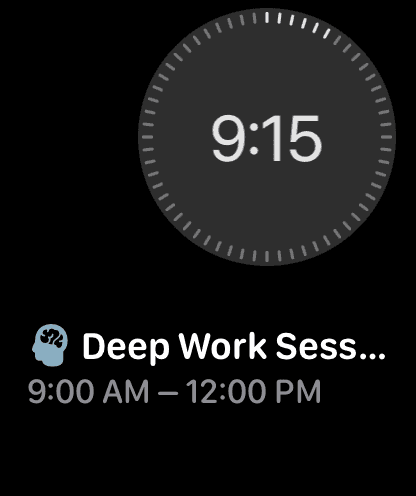
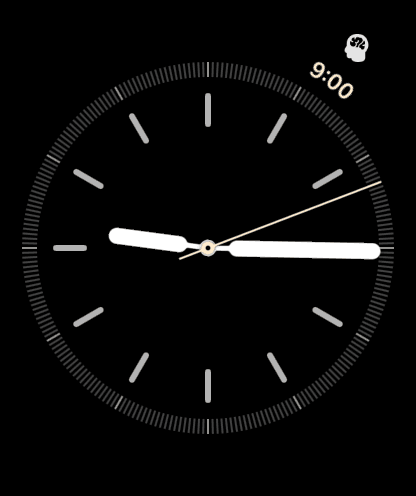
KeepCue watch app, complications, and widget
KeepCue on the watch comes in three parts: a complication on your watch face, a widget in the Smart Stack, and the app.
To see what’s next every time you raise your wrist.
Add the KeepCue Next Activity complication to your watch faces.
To check off the activity you’re on without opening the app.
Add the KeepCue Smart Stack widget.
To work through a routine’s steps, or see the whole day.
Open the KeepCue app.
Install the app
- On iPhone, open the Watch app and tap My Watch.
- Tap Apps, then scroll down to Available Apps and tap Install next to KeepCue.
- Open KeepCue on iPhone once, so your watch gets today’s activities.
Apple Watch installs the watch versions of your iPhone apps by default, so KeepCue may already be there.
Apple’s guide to installing apps on Apple Watch has the current steps.
The app
The app shows today’s activities, opened at the one you’re on. Turn the Digital Crown to scroll. Earlier activities are above.
Finished activities stay in the list, in your Completed activities style.
Tap an activity to see its time, cue and checklist.
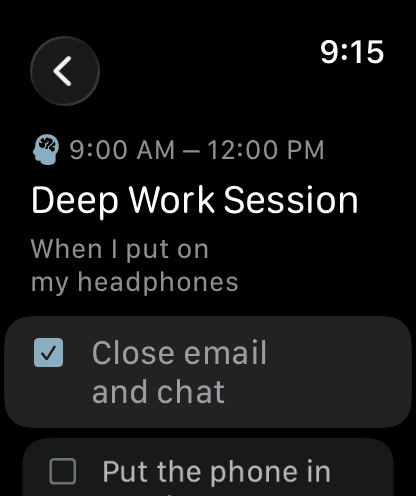
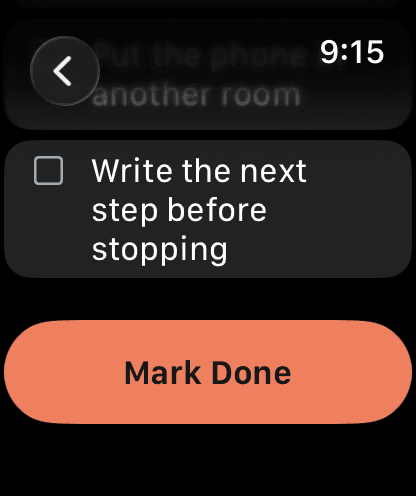
- Tap Mark Done to check it off.
- Or double tap: pinch your index finger and thumb together twice, without touching the screen. Double tap presses Mark Done while the activity is open. Double tap works on Apple Watch Series 9 or later, Ultra 2 or later, and SE 3. To check it’s on, open Settings on your watch, tap Gestures, then Tap Gestures. Apple’s guide to tap gestures has the current models and steps.
- Tap a step to check it off. Checking the last step also checks off the activity.
There’s no unchecking on the watch. To uncheck an activity or a step, use KeepCue on iPhone.
On an Essentials or Core essentials day, the list opens with the day’s status at the top.
The complication
The complication shows the activity you’re on, or the next one. Once today’s activities are done, it looks ahead: it shows tomorrow’s first activity, or, if tomorrow has none, the next one later in the week, with its day and time.
On a day your Day status or Time off cleared, it says so all day: “Core essentials day”, “Essentials day” or “Time Off”.
To add it:
- With the watch face showing, touch and hold the screen, then tap Edit.
- Swipe left all the way to the end.
- Tap a spot, then turn the Digital Crown to choose KeepCue’s Next Activity.
- Press the Digital Crown to save, then tap the face.
You can also do this on iPhone: open the Watch app, tap your face under My Faces, then tap a position under Complications (such as Top Right or Center) and choose KeepCue.
Apple’s guide to adding complications has the current steps.
The large rectangular spot shows the activity’s name and time. Smaller spots show its icon and start time.
Which spots a face offers depends on the face. Two that show KeepCue well:
- Modular: the large rectangular spot in the middle, with the icon, the name and the time.
- Utility: the corner, with the icon and the start time.
The Smart Stack widget
The Smart Stack is the list of widgets behind your watch face. From the watch face, turn the Digital Crown up or swipe up from the bottom of the screen.
KeepCue’s widget shows the activity you’re on, or the next one. Tap the circle to check it off; the widget shows it checked for a moment, then moves on to what’s next. Tap anywhere else to open the activity in the app.
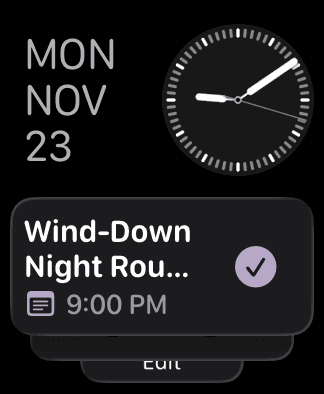
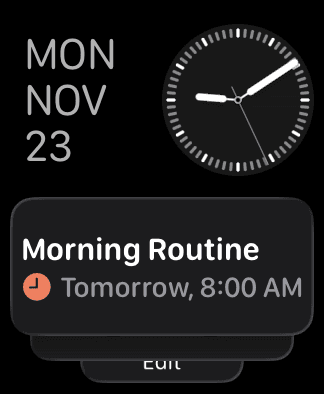
With the widget open, a double tap gesture checks off the activity, like tapping the circle.
Once today’s activities are done, the widget looks ahead like the complication.
The Smart Stack suggests widgets by time of day, so KeepCue’s may come up near an activity’s start.
To add it:
- Open the Smart Stack, scroll to the bottom, and tap Edit.
- Tap the Add Widget button, then choose KeepCue’s Next Activity.
- To keep it in place, tap the pin next to it.
- Tap Done.
Apple’s guide to the Smart Stack has the current steps.
How the watch and iPhone stay in step
If the watch says “Open KeepCue on iPhone”, it doesn’t have your current day. Open KeepCue on iPhone. This happens after you first install the app, after you change time zones, and after a week without opening KeepCue on iPhone.
If your iPhone is out of range, check-offs wait on the watch and go through when it’s back.
Changes you make on iPhone reach the watch when watchOS allows: often within a minute, sometimes longer. Open KeepCue on the watch, or tap the complication, to bring it up to date.
Reminders
KeepCue’s reminders show on your watch like your other iPhone notifications. Check off the activity on the watch and the reminder clears.
Reminders reach the watch while your iPhone is locked.
To choose how they show, open the Watch app on iPhone and tap Notifications, then KeepCue.
Apple’s guide to notification settings has the current steps.
Set up KeepCue in the Watch app on iPhone
The Watch app on iPhone holds your watch’s settings, KeepCue’s included. These help with KeepCue:
- Return to App: lower your wrist during a routine, raise it, and the steps are still there.
- Always On: with your wrist down, the watch shows KeepCue dimmed instead of the watch face.
Apple’s guide to display settings has the current steps.
More watch questions
More watch questions? See the Apple Watch section of Support & FAQ.