Widget Guide
Last Updated: October 6, 2026
KeepCue’s widgets show where you are in your day right from the Home Screen. Check off an activity, or a routine’s steps, without opening the app.
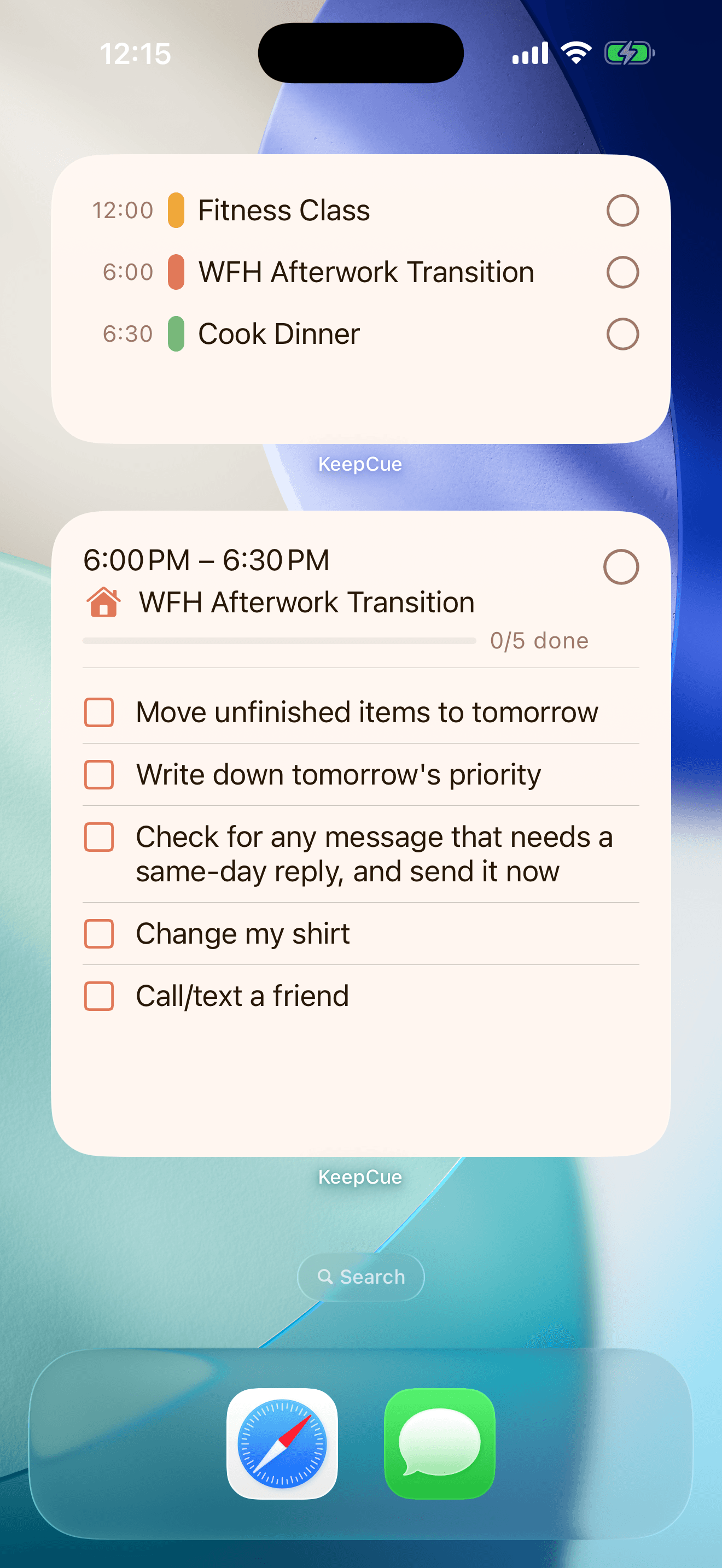
Which widget should I use?
I want to see only the one activity I’m on, or the next one.
Use the Home Screen small widget.
I want a short list of what’s coming up today.
Use the Home Screen medium widget. It shows up to three activities.
I want to check off a routine’s steps one by one.
Use the Home Screen checklist widget.
I want to see what’s next on my Lock Screen.
Use the Lock Screen widget.
I want to see what’s next while my iPhone charges on my desk or nightstand.
Use the small widget in StandBy.
You can add more than one widget. Add a small or medium widget for the day, plus a checklist widget for the routine you’re building such as an afterwork transition or wind-down evening routine.
Add a widget
- Touch and hold an empty spot on the Home Screen until the apps jiggle.
- Tap Edit, then Add Widget, and search for KeepCue.
- Choose Next activity (small or medium) or Checklist (large), then tap Add Widget.
- Tap Done.
Apple’s guide to adding and editing widgets has the current steps.
Small widget
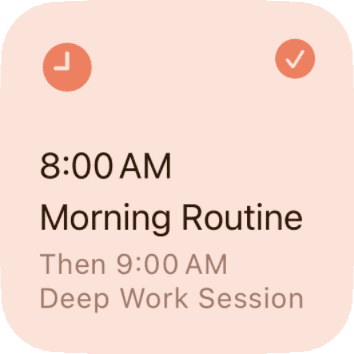
The small widget shows the activity you’re on.
An activity stays on the widget until the next one starts.
Medium widget
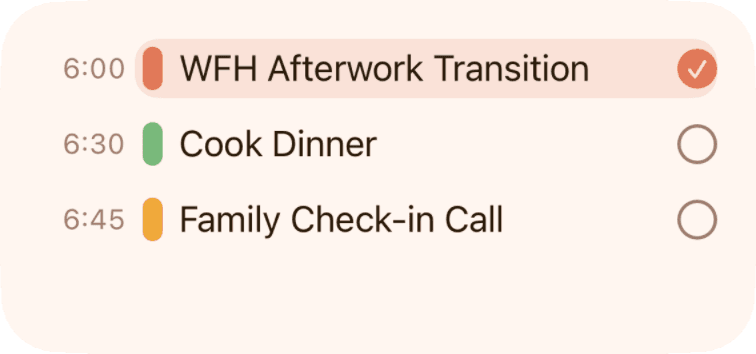
The medium widget shows the activity you’re on and up to two more today.
Tap an activity’s name to open it in KeepCue. Tap the circle to check off an activity.
Checklist widget
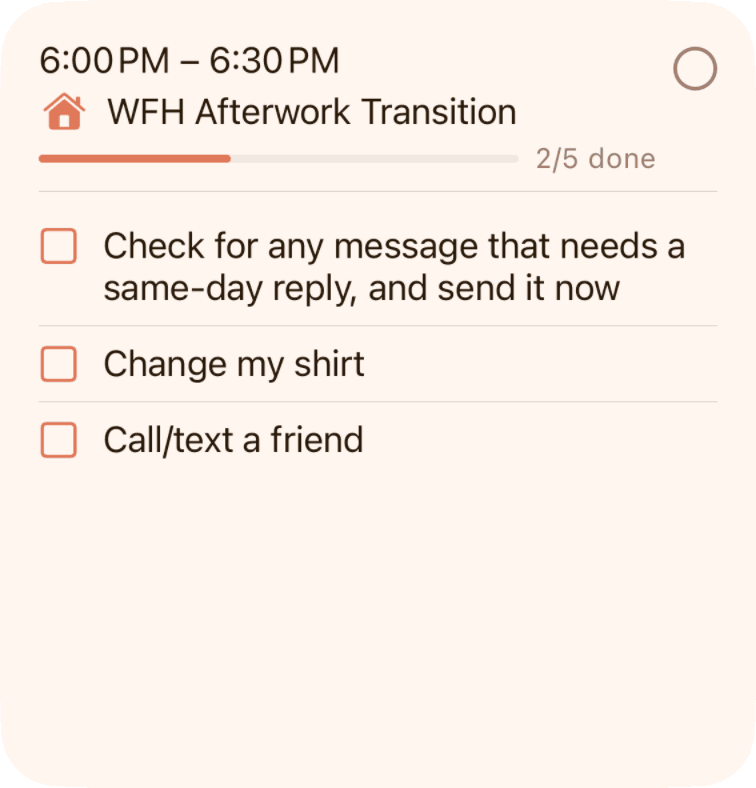
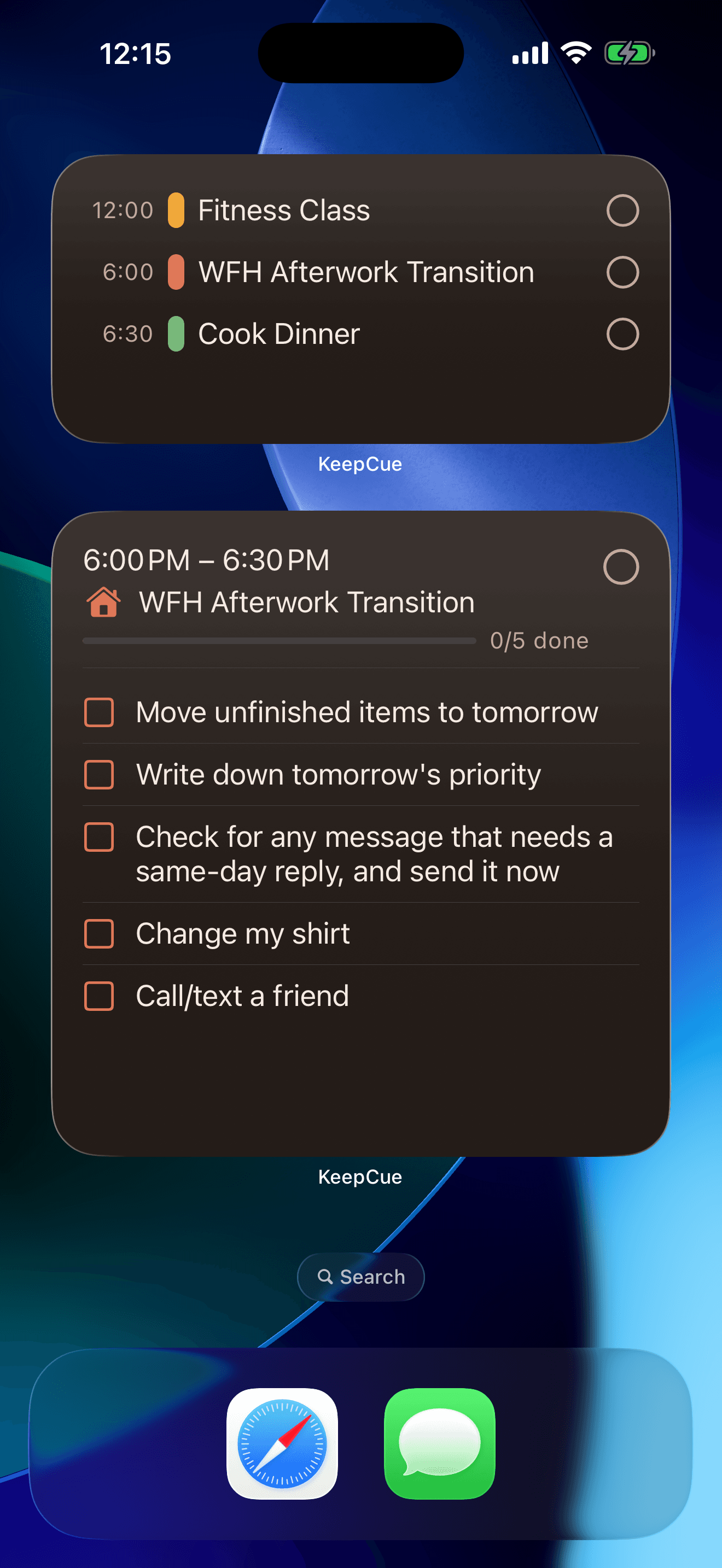
The checklist widget shows your selected routine and its steps. Check off each step right on the widget.
A checked step leaves the list, and the bar under the routine’s name shows how many are done. To uncheck a step, tap the routine’s name to open it in KeepCue.
To choose the routine:
- Touch and hold the widget.
- Tap Edit Widget.
- Tap Checklist and choose a routine.
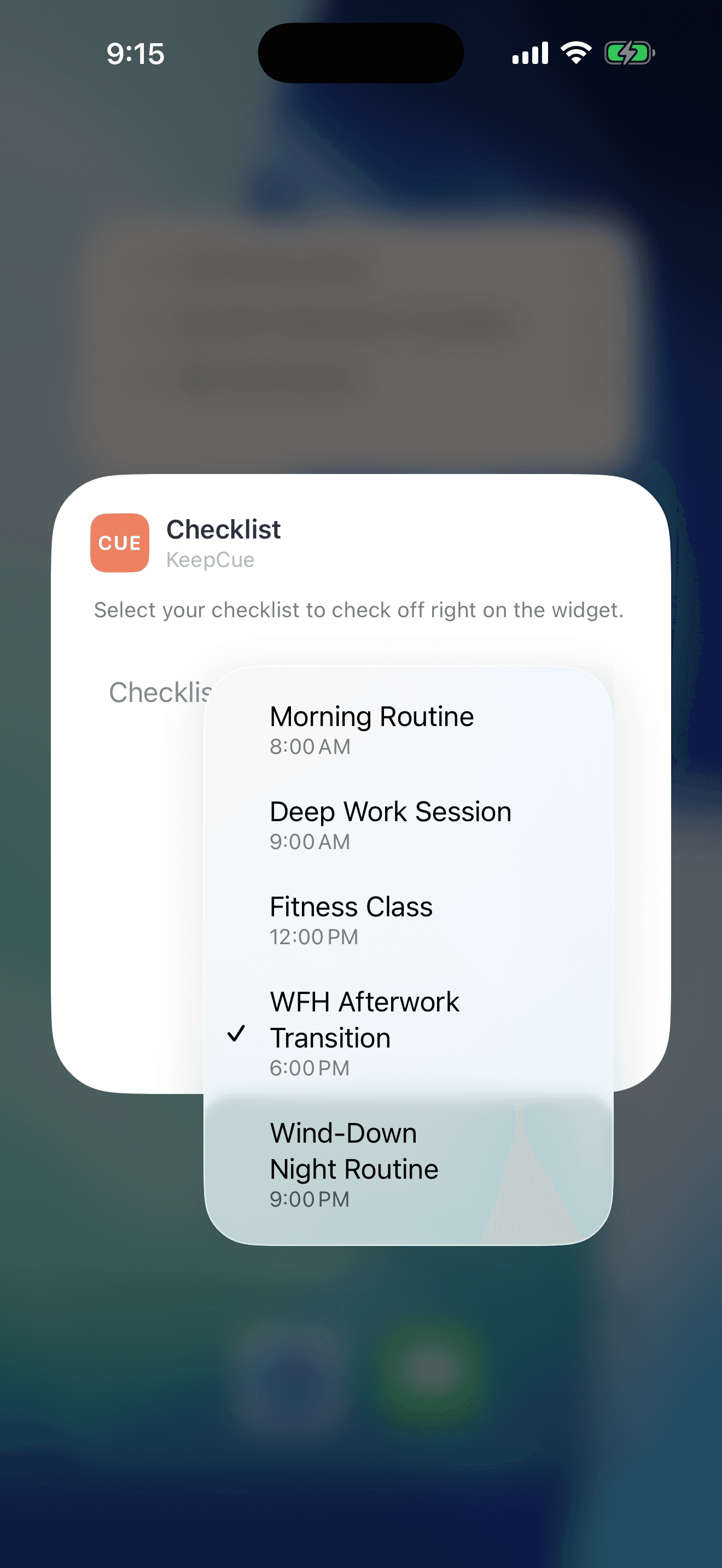
You can add more than one checklist widget.
Works in dark mode
The widgets follow your iPhone’s light or dark appearance.
Lock Screen widget
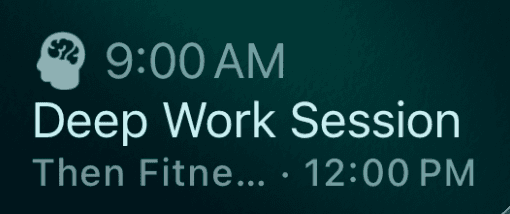
The Lock Screen widget shows the activity you’re on or what’s next.
Tap it to unlock and open the activity in KeepCue.
To add it:
- Touch and hold the Lock Screen, then tap Customize.
- Tap Lock Screen.
- Tap Add Widgets under the clock, then choose KeepCue.
- Tap Done.
Apple’s guide to customizing the Lock Screen has the current steps.
To keep activity names private while your iPhone is locked, go to Settings, Face ID & Passcode (or Touch ID & Passcode), and turn off Lock Screen Widgets under Allow Access When Locked. Names then show only once your iPhone recognizes you. See Apple’s guide to Lock Screen features.
StandBy
StandBy is what your iPhone shows when it’s charging, on its side and locked. The small widget works there, large enough to read from across the room.
Apple’s guide to using StandBy has the current steps.
More widget questions
More widget questions? See the Widgets section of Support & FAQ page.